

Appearance
Datto RMM Setup
Datto RMM is a remote monitoring and management platform. Once connected, Junto can look up devices and sites, review open alerts, check patch and antivirus status, audit hardware, list installed software, and — with approval — run automation or reboot endpoints during ticket triage.
Prerequisites
- A Datto RMM account with API access enabled for the account
- A Datto RMM user with permission to generate API keys
- The API URL, API Key, and API Secret Key for that user (generated in Step 1)
Step 1: Generate an API Key in Datto RMM
The API has to be enabled for the entire Datto RMM account first. An API Key and an API Secret Key are then generated for each user that needs API access.
Enable API access for the account
- In Datto RMM, navigate to Setup > Global Settings > Access Control.
- Turn on the Enable API Access toggle. API keys are generated on a user-by-user basis.
Generate API keys for the user
Navigate to Setup > Users, and click the username you want to enable API access for.
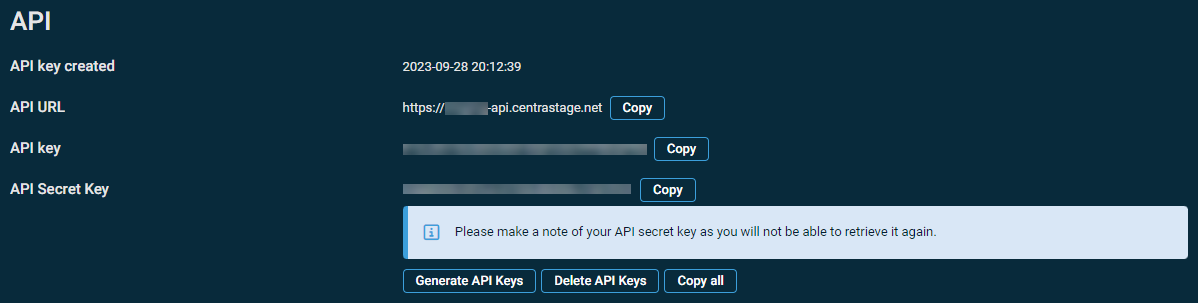
Click Generate API Keys. Datto RMM displays three values you'll need:
- API URL — your platform's API endpoint (for example,
https://your-platform-api.centrastage.net) - API Key
- API Secret Key
- API URL — your platform's API endpoint (for example,
Make a note of all three somewhere safe — the API Secret Key is only shown once and can't be retrieved again. You'll enter these into Junto in the next step.
Step 2: Configure in Junto
- In Junto, go to Settings > Integrations > Datto RMM.
- Click Add configuration. In the Configure Datto RMM API credentials dialog, enter the three values from Step 1:
- API URL — your platform host, for example
https://your-platform-api.centrastage.net. Junto reads your platform from this URL — there's no separate region to choose. - API key — the API Key you generated in Step 1.
- API secret — the API Secret Key you generated in Step 1. It's encrypted on save.
- API URL — your platform host, for example
- Click Create.
Once saved, the configuration card shows an Active badge along with the API URL and a masked API key. In the main Integrations grid, the Datto RMM card shows a green Connected badge when the credentials are valid, or Not configured if setup is still needed.
Step 3: Map Companies to Datto RMM Sites
Link your Junto companies to their Datto RMM sites so the agent queries the right devices for each client.
- On the configuration card, click Configure company mapping to open Map companies to Datto RMM sites.
- For each Junto company, pick the corresponding Datto RMM site from the dropdown (or leave it Unmapped). A counter shows how many of your companies are mapped.
- To save time, click Run auto-map. It applies exact name matches automatically and surfaces fuzzy matches as suggestions for you to review and confirm.
- Click Save mappings.
Tip: If the dialog reports no sites returned from the API, your credentials are likely invalid — re-check the API URL, key, and secret from Step 1. Loading this dialog fetches your Datto RMM sites live, so it doubles as a connection test.
Disconnecting
On the configuration card, click Disconnect and confirm. This removes the stored credentials and every company mapping for this integration, and the agent loses access to Datto RMM device tools until you add a new configuration.
What the Agent Can Do
Once Datto RMM is connected, the AI agent can pull device, site, and alert information during ticket triage, and — with approval — take action on endpoints.
Sites and Company Info
| Tool | Description | Risk Level |
|---|---|---|
| List Sites | List every site (client) in the Datto RMM account with online/offline device counts | Low |
| Get Site | View details for one site, including device online/offline counts | Low |
| List Site Devices | List the managed devices at a site, with OS, online status, last seen, antivirus, and patch status | Low |
Device Information
| Tool | Description | Risk Level |
|---|---|---|
| List Devices | List devices account-wide, optionally filtered by hostname, OS, or device type | Low |
| Get Device | View a full snapshot of one device — identity, live status, network, antivirus, and patch | Low |
| Find Device | Look up a device by MAC address or ID | Low |
| Get Device Audit | View a hardware/OS audit — make, model, serial, CPU, memory, BIOS age, OS, and disk capacity | Low |
| Get Device Software | List installed software on a device (name, version, publisher, install date) | Low |
Monitoring and Alerts
| Tool | Description | Risk Level |
|---|---|---|
| List Open Alerts | List all open alerts across the account (disk, resource usage, patch, online/offline, antivirus, and more) | Low |
| List Device Alerts | List the open alerts for a single device | Low |
| Get Alert | View the details of a specific alert | Low |
Fleet Health and Activity
| Tool | Description | Risk Level |
|---|---|---|
| Get Fleet Summary | An account roll-up — site count, device totals, antivirus and patch posture, and open-alert count | Low |
| Get Activity Logs | Query the account activity log ("who did what, when") | Low |
| Get Device Activity | View recent activity for one device | Low |
Automation
| Tool | Description | Risk Level | Approval |
|---|---|---|---|
| List Components | List the automation components (scripts and monitors) available in the account | Low | None |
| Get Job | Check the status of a job | Low | None |
| Get Job Result | Read the per-device output of a completed job | Low | None |
| Run Quick Job | Run an automation component (script) on a device | High | Always |
| Reboot Device | Reboot a managed device | High | Always |
Running a script or rebooting a device acts directly on the endpoint, so both always require explicit technician approval before they run.
Troubleshooting
- Connection fails — Verify the API URL, API key, and API secret. Ensure API access is still enabled account-wide (Setup > Global Settings > Access Control) and that the user's API keys haven't been deleted or regenerated in Datto RMM.
- No sites returned / mapping is empty — This almost always means the credentials are invalid or API access was turned off. Re-check the values from Step 1.
- Devices not found for a company — Confirm the company is mapped to the correct Datto RMM site in Step 3.
- Script or reboot denied — Run Quick Job and Reboot Device always require technician approval before they run.