

Appearance
ConnectWise PSA Setup
ConnectWise PSA is Junto's primary integration. It syncs tickets, companies, contacts, and time entries, providing the foundation for signal triage.
Prerequisites
- A ConnectWise PSA instance (cloud or on-premise)
- An API member account with appropriate security role permissions
- Your ConnectWise Company Identifier and base URL
Step 1: Create a Security Role
- In ConnectWise, go to System > Security Roles and create a new role named Junto.
- Configure the permissions below. Actions not listed can be left at None.
Companies
| Action | Add | Edit | Delete | Inquire |
|---|---|---|---|---|
| Company Maintenance | All | All | None | All |
| Company/Contact Group Maintenance | All | All | All | All |
| Configurations | None | None | None | All |
| Contacts | All | All | None | All |
| Manage Attachments | All | None | None | All |
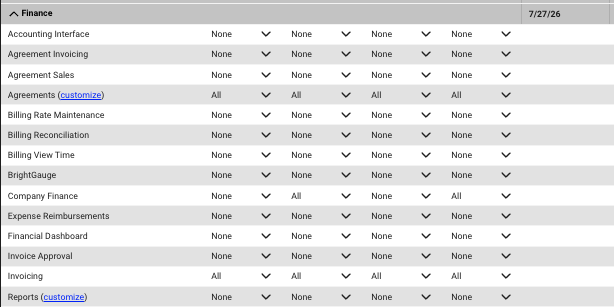
Finance
| Action | Add | Edit | Delete | Inquire |
|---|---|---|---|---|
| Agreements | All | All | All | All |
| Company Finance | None | All | None | All |
| Invoicing | All | All | All | All |
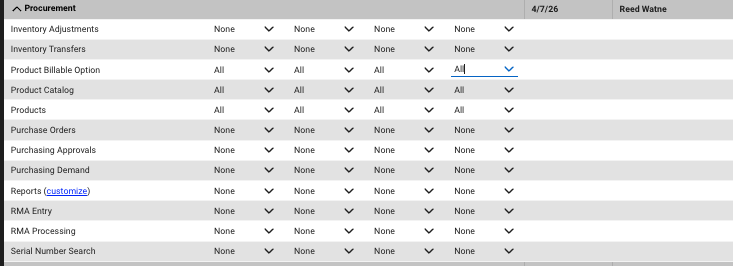
Procurement
| Action | Add | Edit | Delete | Inquire |
|---|---|---|---|---|
| Product Billable Option | All | All | All | All |
| Product Catalog | All | All | All | All |
| Products | All | All | All | All |
Sales
| Action | Add | Edit | Delete | Inquire |
|---|---|---|---|---|
| Opportunity | All | None | None | All |
| CRM/Sales Activities | All | None | None | All |
Project
| Action | Add | Edit | Delete | Inquire |
|---|---|---|---|---|
| Project Headers | All | All | All | All |
| Project Tickets | All | All | All | All |
Service Desk
| Action | Add | Edit | Delete | Inquire |
|---|---|---|---|---|
| Close Service Tickets | None | All | None | All |
| Merge Tickets | All | None | None | All |
| Reports | None | None | None | All |
| Resource Scheduling | All | None | All | All |
| Service Ticket - Finance | None | None | None | All |
| Service Tickets | All | All | None | All |
System
| Action | Add | Edit | Delete | Inquire |
|---|---|---|---|---|
| API Reports | None | None | None | All |
| Manage Hosted API | All | None | All | All |
| Member Maintenance | None | None | None | All |
| My Company | None | None | None | All |
| Table Setup | All | All | All | All |
Time & Expense
| Action | Add | Edit | Delete | Inquire |
|---|---|---|---|---|
| Time Entry | All | All | All | All |
| Time Entry Billable Option | All | All | All | All |
| Reports | None | None | None | All |
Optional / Future Permissions
Pre-configure these for upcoming features. Not currently required.
| Module | Action | Add | Edit | Delete | Inquire |
|---|---|---|---|---|---|
| Companies | Notes | None | None | None | All |
| Companies | Team Members | None | None | None | All |
| Sales | Closed Opportunity | None | All | None | All |
| Sales | Opportunity Finance | None | None | None | All |
| Sales | Reports | None | None | None | All |
| Sales | Sales Dashboard | None | None | None | All |
| Sales | Sales Funnel | None | None | None | All |
| Sales | Sales Order Finance | None | None | None | All |
| Sales | Sales Orders | All | All | All | All |
Step 2: Create an API Member
- In ConnectWise, go to System > Members and create a new API member.
- Set the member ID and name to junto and assign the Junto security role.
- Generate API keys (public and private) for this member.
Step 3: Configure in Junto
- In Junto, go to Settings > Integrations > ConnectWise PSA.
- Click Add Configuration and fill in:
- Company Identifier -- Your ConnectWise company ID (e.g.,
mycompany). - Base URL -- Your ConnectWise instance URL (e.g.,
na.myconnectwise.net). - Public Key -- The API public key from Step 2.
- Private Key -- The API private key from Step 2.
- Company Identifier -- Your ConnectWise company ID (e.g.,
- Click Create. Junto validates the connection by querying your ConnectWise instance.
Step 4: Map Service Boards
After connecting, configure which ConnectWise service boards Junto should monitor:
- Select the boards you want to sync tickets from.
- Apply selections, then map each board's ConnectWise statuses to Junto signal statuses.
Status Mapping
Each ConnectWise ticket status must be mapped to a Junto signal status. This mapping controls how tickets flow through Junto and which processors run on them.
| Junto Status | Meaning | Map to these CW statuses |
|---|---|---|
| New | Ticket just arrived, needs triage | New, Open, Unassigned — statuses for tickets that haven't been looked at yet |
| Child | Merged or bundled under a parent ticket | Child, Merged — statuses for tickets that are part of a parent ticket |
| Resolved | Work is done, pending confirmation | Resolved, Completed, Done — triggers resolution processors (AI resolution summary, service catalog classification) |
| Closed | Fully closed, no further action | Closed, Cancelled — final state, no processors run |
| Active | Everything else | All remaining statuses (In Progress, Assigned, Waiting, Scheduled, etc.) |
Why this matters:
- New triggers intake processors — triage, priority classification, categorization, sentiment analysis
- Resolved triggers resolution processors — AI resolution summary, resolution comparison, service catalog classification
- Closed is a terminal state — tickets are hidden from the default signal view
- Child tickets are excluded from the main signal list to avoid duplicates
- Active is the working state — tickets are visible and monitored but don't trigger intake processors again
Tip: When in doubt, map a status to Active. Only map to New, Child, Resolved, or Closed when the status clearly matches those definitions.
Step 5: Map Technicians
Link your Junto users to their ConnectWise member records:
- Go to the Member Mapping section on the ConnectWise settings page.
- For each Junto user, select their corresponding ConnectWise member.
- This mapping enables time entries created by the AI agent to be attributed to the correct technician.
Step 6: Run Initial Sync
Click Full Sync to perform the initial data import. This syncs:
- Companies -- All active companies from ConnectWise.
- Contacts -- Contacts associated with synced companies.
- Tickets -- Open tickets from the selected service boards.
- Time entries -- Time entries associated with synced tickets.
After the initial sync, Junto keeps your data up to date automatically.
Service Ticket Pod
Once connected, you can embed Junto directly inside ConnectWise service tickets so technicians can work with the agent without leaving their PSA. The Service Ticket Pod section of the configuration card enables it. See the ConnectWise Pod guide for setup, including the step each technician completes to add the pod to their own ticket view.
Real-Time Sync
Changes in ConnectWise (tickets, time entries, companies, and contacts) sync to Junto automatically in real-time. No manual setup is required — this is configured automatically when you connect the integration.
Hidden Companies
If ConnectWise contains stale or duplicate companies you can't merge yet, you can hide them from the agent so it doesn't surface the wrong record. Hidden companies stay in Junto and can be restored anytime.
- On the ConnectWise PSA configuration card, click Hidden Companies.
- In the Hidden Companies dialog, browse or search your ConnectWise companies. Filter by All, Visible, Hidden, or Possible duplicates (rows that share a name or identifier are flagged).
- Click Hide on a company to exclude it from the agent, or Restore to bring it back. Select multiple rows to hide or restore them in bulk.
A hidden company is excluded from agent searches and company-scoped tools, and can no longer be selected when mapping companies — until you restore it.
Troubleshooting
- Connection fails -- Verify your Company Identifier, Base URL, and API keys. Ensure the API member is not disabled.
- Tickets not syncing -- Check that the correct service boards are selected and that the API member has read access to those boards.
- Time entries not attributed -- Verify the technician mapping. The Junto user who initiates the agent must be mapped to a ConnectWise member.
- Real-time sync not working -- If changes in ConnectWise are not appearing in Junto promptly, contact Junto support.